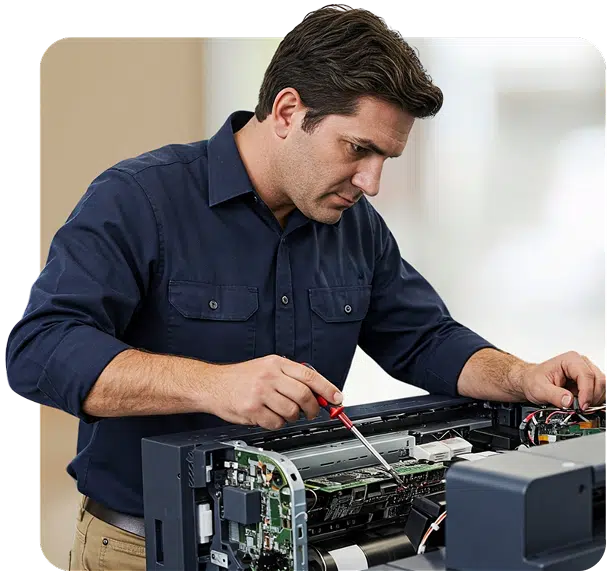
Printer Troubleshoot Guide
Paper Jams
Offline Errors
Print Quality Issues
|
Printers are essential devices in homes and offices, but they are also among the most frustrating to deal with. Common issues such as paper jams, poor print quality, printer offline errors, and print spooler failures can occur without warning and interrupt daily work.
How Printers Work (Why Issues Occur)
A printer operates through a combination of mechanical parts, electronic components, and software systems. When any one of these systems fails or becomes misaligned, printing problems begin.
Key Printer Components
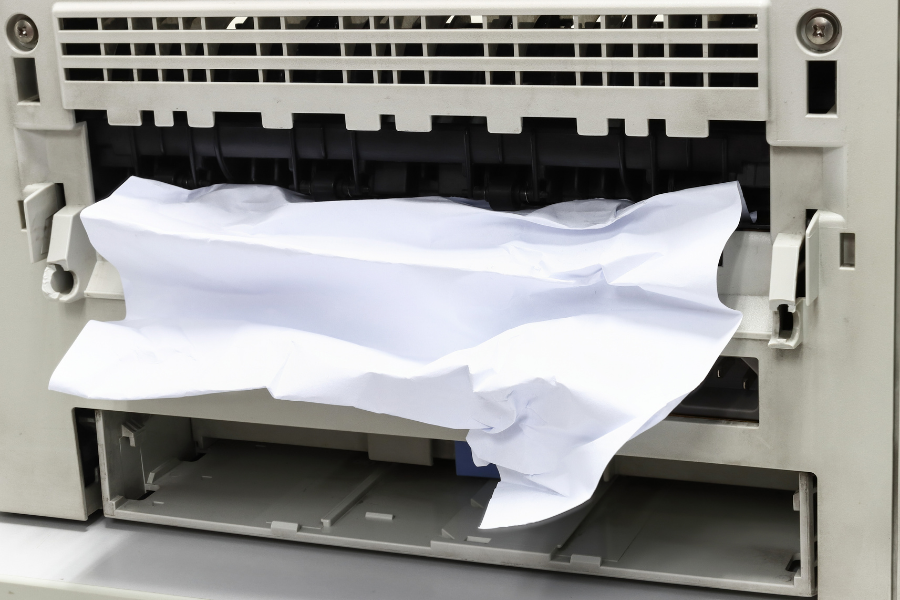
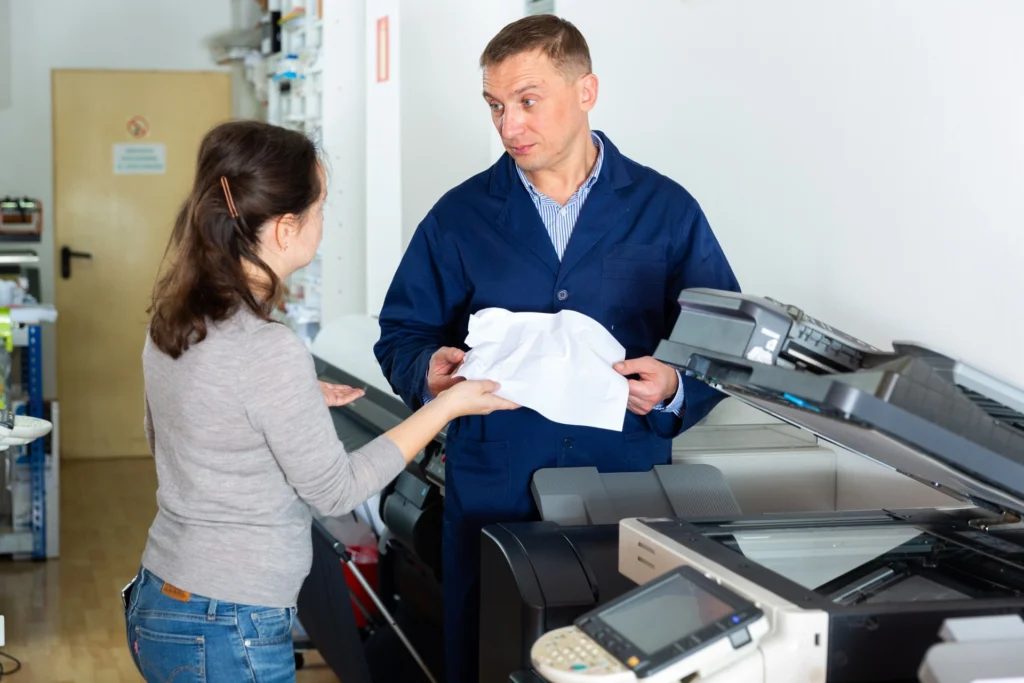
What Is a Paper Jam?
A paper jam happens when paper does not move correctly through the printer. A phantom jam occurs when sensors detect paper even though none is visible, often due to tiny paper fragments.
Common Causes
- Worn or dirty rollers
- Damp, curled, or low-quality paper
- Incorrect paper size settings
- Overloaded paper trays
- Torn paper stuck inside
How to Clear a Paper Jam
- Turn off and unplug the printer
- Remove all paper from trays
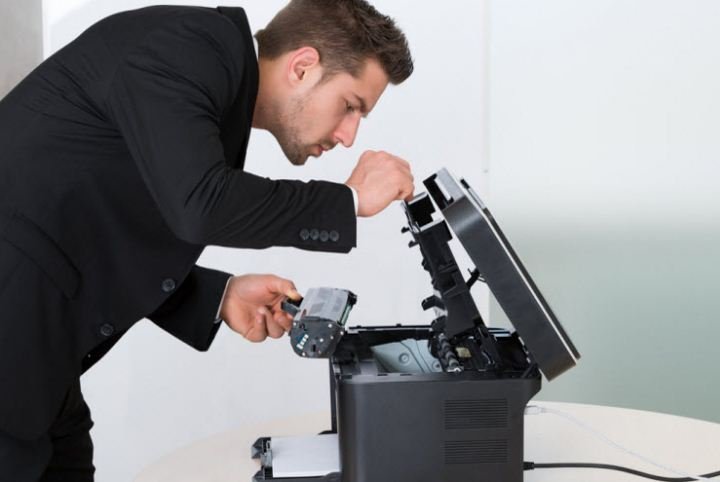
- Open all access panels
- Gently pull paper in the direction of travel
- Inspect rollers and internal areas using a flashlight
- Remove even the smallest scraps
Cleaning Printer Rollers
- Use a lint-free cloth
- Lightly moisten with isopropyl alcohol
- Rotate rollers manually while cleaning
Preventing Paper Jams
- Fan paper before loading
- Store paper in a dry environment
- Avoid overfilling trays
- Use manufacturer-recommended paper
Why Is Printer Printing Blank Pages?
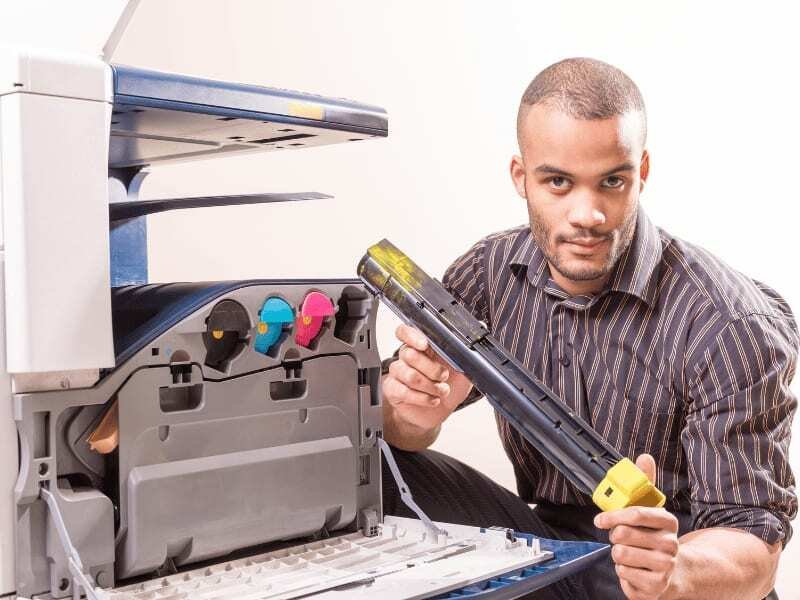
Blank pages usually result from clogged print heads, empty cartridges, incorrect driver settings, or protective seals left on cartridges.
How to Fix
- Check ink or toner levels
- Remove cartridge seals
- Run print head cleaning
- Reinstall printer drivers
- Reset printer settings
Inkjet Tip: Ink can dry inside nozzles. Running 2–3 deep cleaning cycles often restores proper ink flow.

Inkjet Printer Symptoms
Symptoms
- Horizontal white lines
- Missing colors
- Faded text
Solutions
- Print head alignment
- Deep cleaning cycle
- Replace dried cartridges
Printer Not Printing at All
Why the Printer Won’t Respond
- Printer set to offline
- Corrupted drivers
- Print spooler failure
- Wrong default printer
Quick Fix Checklist
- Restart printer and computer
- Set the printer as default
- Clear all print jobs
- Reinstall printer drivers
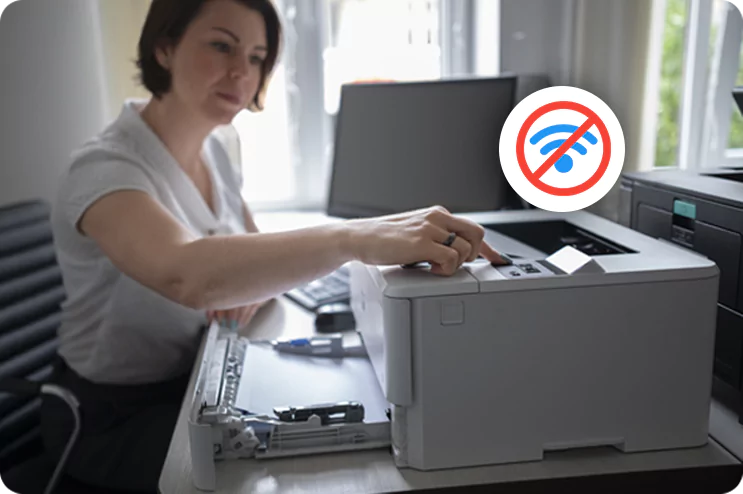
Printer Offline Errors
Common Causes
- IP address changes
- Network conflicts
- Router restarts
- Sleep mode issues
How to Fix Printer Offline Error
- Open Printers & Scanners
- Disable “Use Printer Offline”
- Remove and re-add printer
- Assign a static IP address
Wireless Printer Connection Problems
Why Wi-Fi Printing Fails
- Incorrect Wi-Fi password
- 5GHz vs 2.4GHz mismatch
- Weak signal strength
- Router firewall restrictions
Solutions
- Connect printer to 2.4GHz Wi-Fi
- Move printer closer to router
- Temporarily disable VPN
- Restart router and printer
Print Spooler Errors (Windows)
What Is the Print Spooler?
The print spooler temporarily stores print jobs. When it crashes, jobs become stuck or duplicate.
Common Symptoms
- Jobs stuck in queue
- Delayed printing
- Multiple copies printing
How to Fix
- Press Windows + R → type services.msc
- Stop Print Spooler
- Delete files from
C:\Windows\System32\spool\PRINTERS - Restart Print Spooler
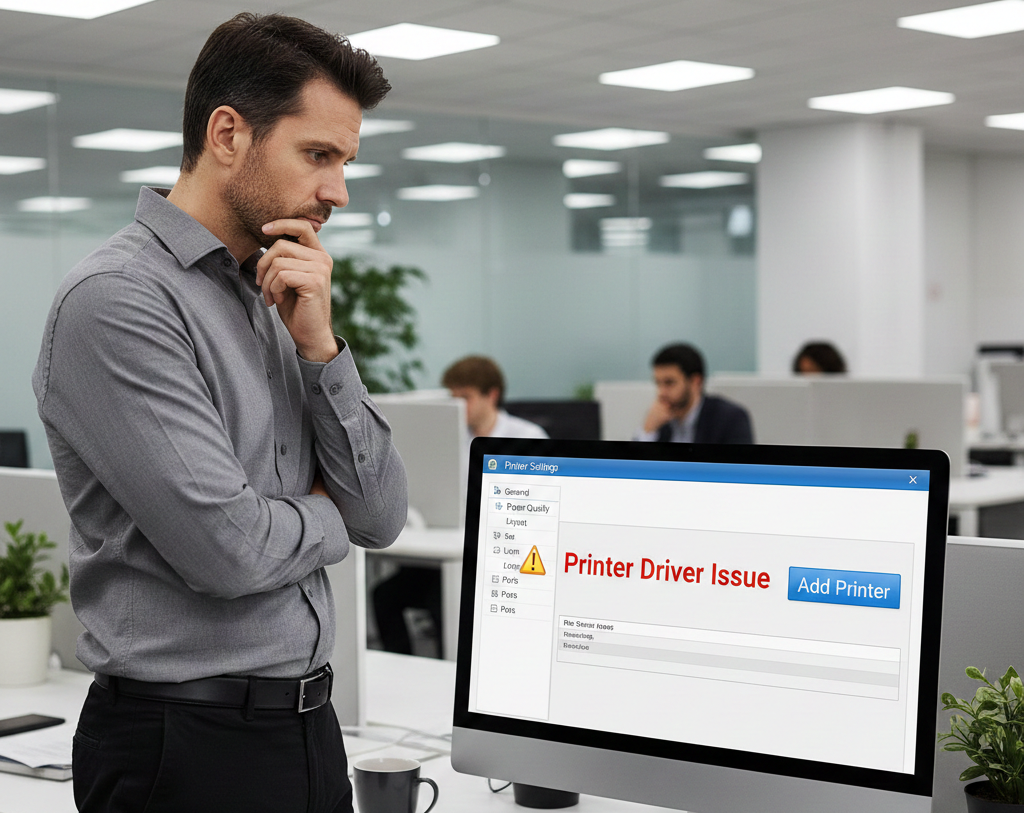
Printer Driver Problems
Why Drivers Fail
- Operating system updates
- Corrupt installations
- Incompatible drivers
Best Fix Method
- Remove the printer completely
- Download drivers from the official manufacturer site
- Install using administrator privileges
⚠️ Avoid third-party driver websites.
Printer Maintenance & Prevention
Monthly Maintenance Checklist
- Clean rollers
- Print a test page weekly
- Keep firmware updated
- Store ink cartridges correctly
Average Printer Lifespan
- Inkjet printers: 3–5 years
- Laser printers: 5–8 years
Proper maintenance can significantly extend printer life and prevent costly repairs.